App Canvas: Your Whole UI, Built from Real Code
AI makes it easier to build another screen. It does not automatically make a growing application easier to understand.
I kept asking the same questions: which screens exist, what happens when saving fails, where does this button go, and which conditions have I forgotten to inspect? Clicking through the application was slow. Maintaining a separate design document created another thing to update.
I wanted to zoom out and see the implemented app like a designer’s canvas, then zoom in and use the actual UI.
App Canvas is my open-source implementation of that workflow, designed to be set up and maintained with a coding agent. An agent that can read and edit files and run commands can use it; Codex and Claude Code also have an optional bundled skill.
1. Zoom out: see the whole app
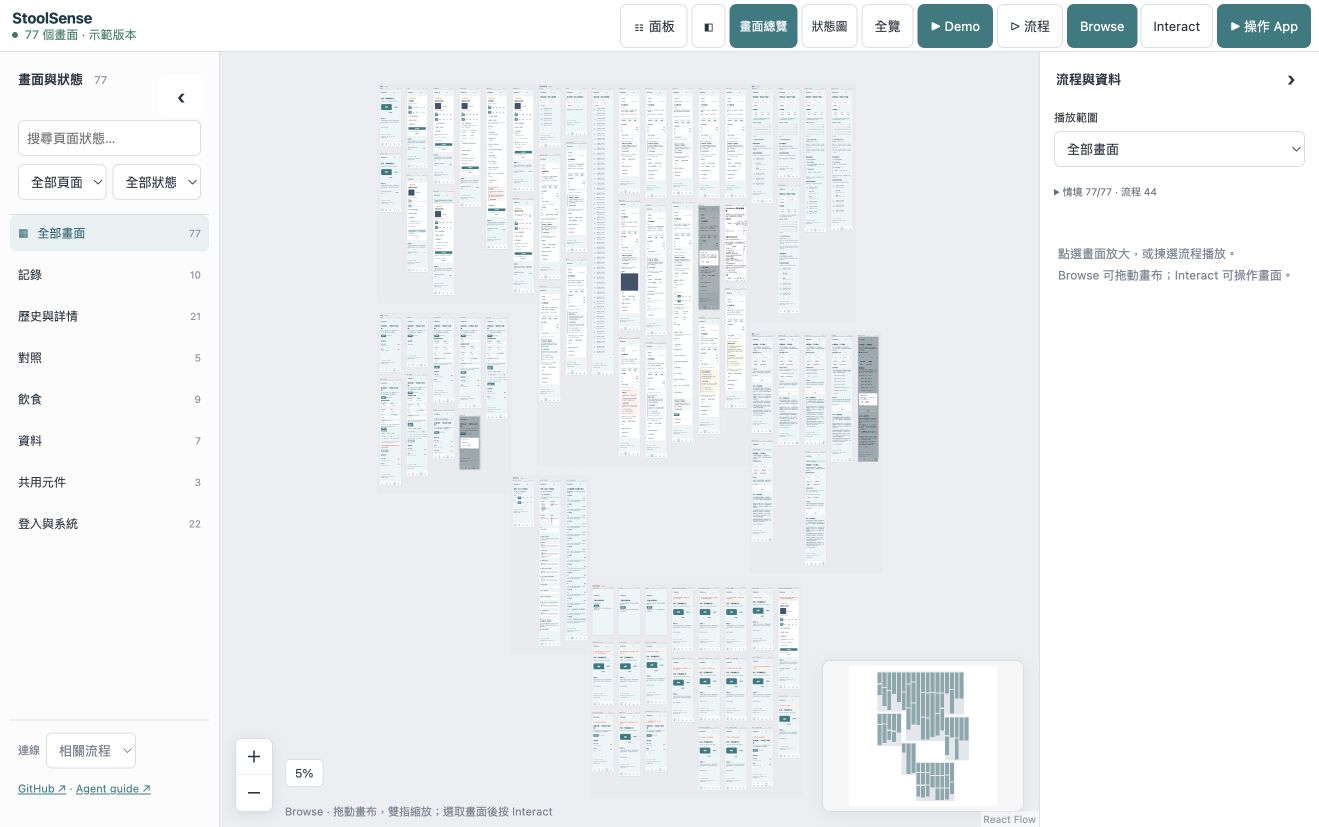
The StoolSense example contains 77 authored states and 44 interaction flows. Its playback queue combines those flows with all 77 standalone cases: 121 playable entries, not 121 different end-to-end journeys.
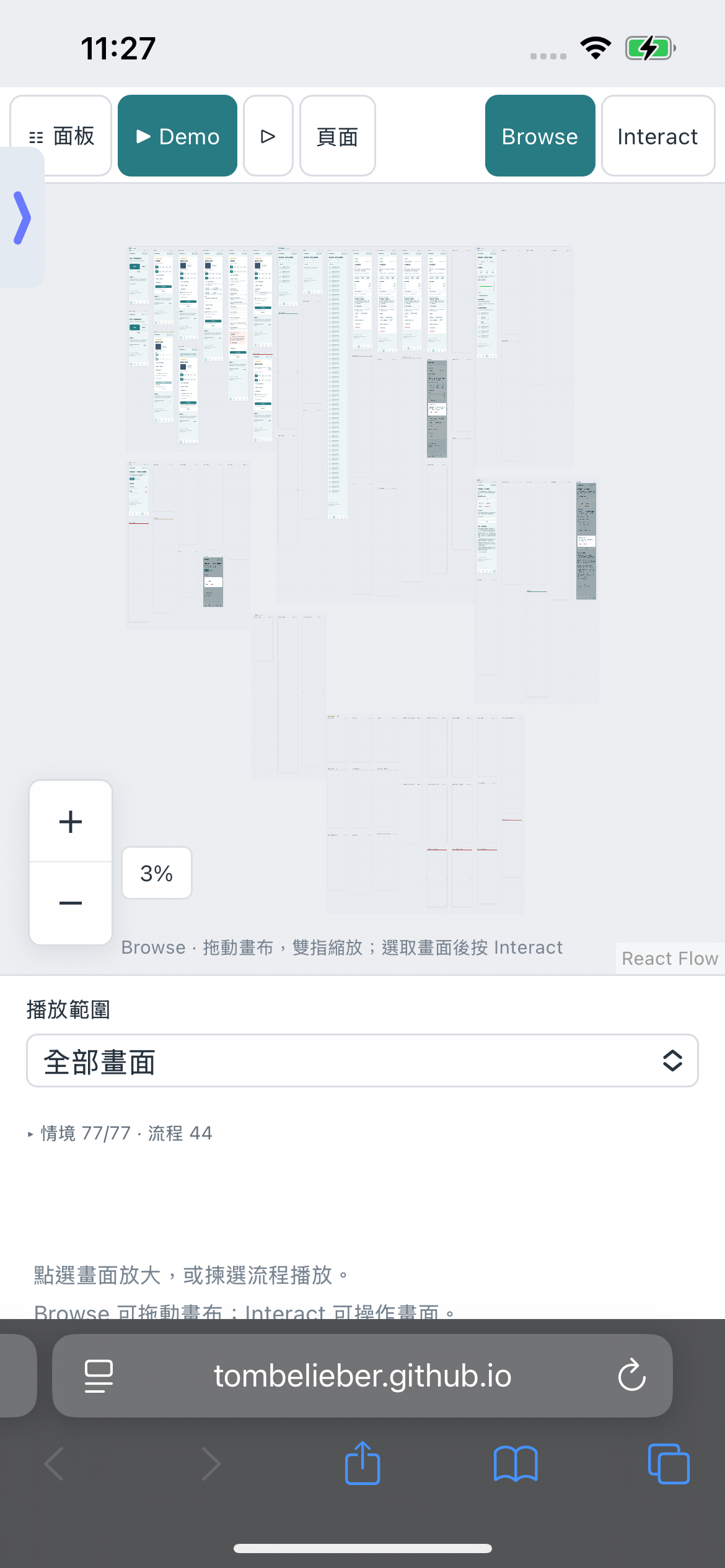
Search for a state, filter to a page or feature, and choose the expansion depth. Collapsible sidebars keep room for the canvas on iPad landscape. Browse mode locks application controls while you pan and zoom; select a screen and choose Interact to use its real controls.
The demo’s records are synthetic. Recording, correction, deletion, imports, exports, dialogs and recovery operate in a disposable browser preview, with no production session or backend, real health records, AI requests or analytics.
2. Follow the connections
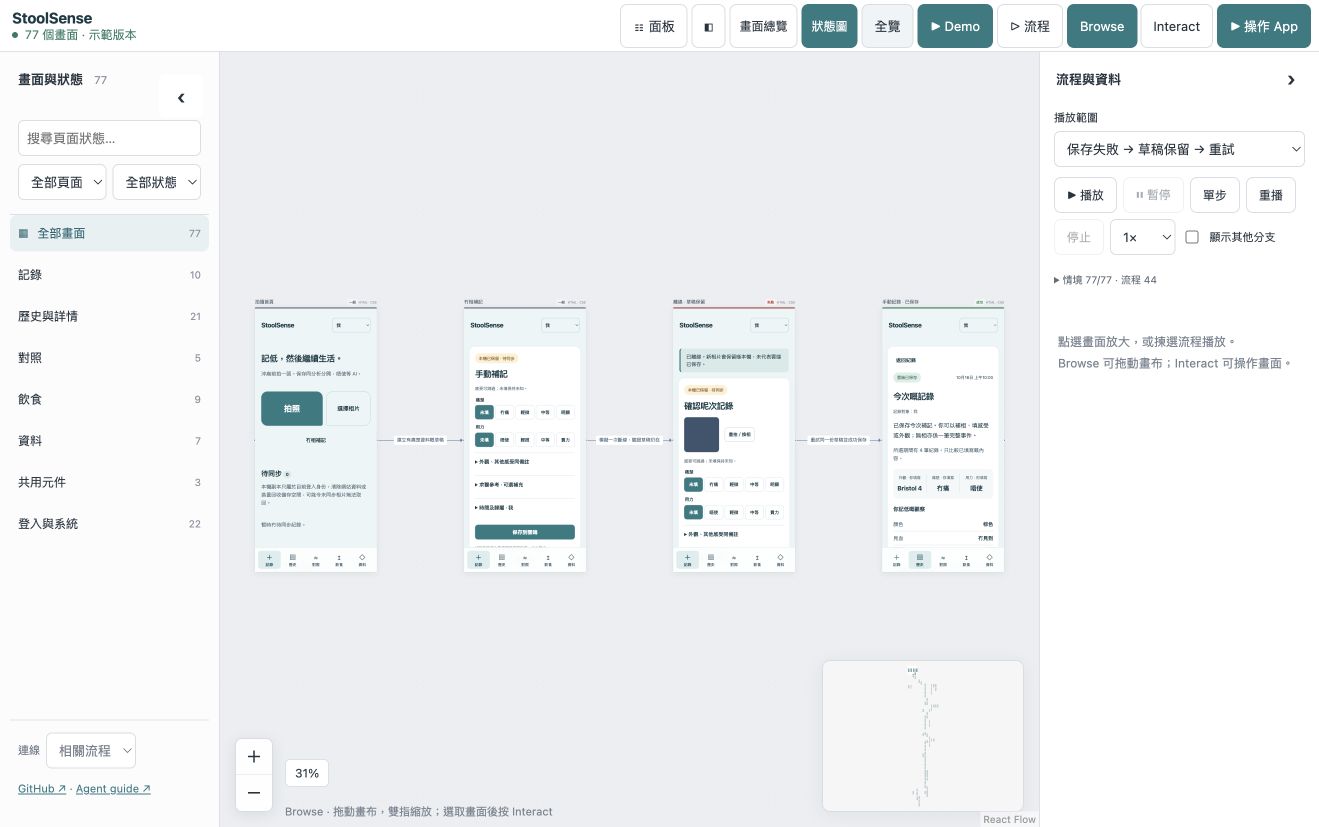
The graph uses full screens and labeled transitions. A drawn connection explains a relationship; an authored journey performs the actual interaction and checks its result. Fixture-only conditions are labeled separately, so the graph does not invent clicks to reach an external permission or provider outcome.
3. Press Demo to play a flow
Choose a flow and press Demo. The player performs actions in one continuing app session, shows action cues and captions, and follows confirmed screens. Pause, change speed, use the step timeline, replay, or move between demos. Whole-app and page-scoped queues are available.
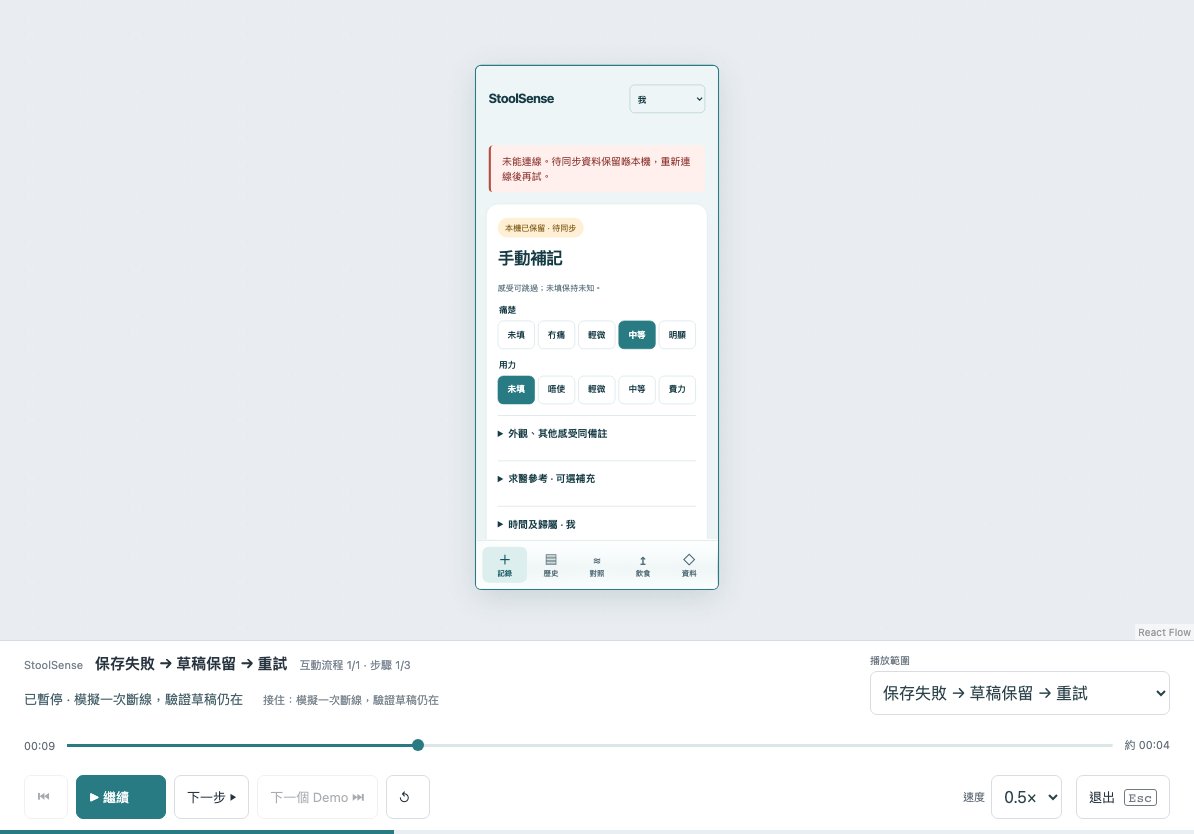
A standalone case starts from its declared fixture and checks that view. It is not presented as navigating through every state in one uninterrupted session. Skipped entries remain distinct from completed ones.
From an existing repo to a working canvas
You supply the application repo and your coding agent. The agent owns discovery, fixtures, the render adapter, flows and verification. You do not need to prepare a Storybook or hand-write the screen list first. Installing the CLI alone does not populate the app.
Paste this into your agent in the target repository:
Read https://github.com/tombelieber/app-canvas/blob/v0.10.3/AGENT_GUIDE.md
and add a completely populated App Canvas to this repository.
Discover screens, components, variants, states and navigation from the whole
application source. Use original UI code. Create synthetic fixtures and
render harnesses. Reconcile an independent source inventory with rendered
cases and source-linked runtime checks. Add checked happy, failure and
recovery journeys. Run --complete against the original source root.
Continue until the full landscape is populated and verified; report
genuine blockers as incomplete. Keep production sessions, credentials
and real user data out of previews.
Here is the concrete work that prompt asks the agent to do.
Step 1 — Install the shared tool
Use Node.js 22+ and the project’s package manager and lockfile. For npm:
npm install --save-dev github:tombelieber/app-canvas#v0.10.3
npx app-canvas browsers
This installs the GitHub release. It does not assume publication to the npm registry. On npm 12, add --allow-git=root to that install command only if Git admission blocks the direct dependency; do not change global npm policy.
Optional skill setup for Codex and Claude Code:
npx app-canvas install --target bothOther agents can read the versioned guide directly. The canvas runtime makes no model calls and needs no model API key; your chosen coding agent has its own costs and permissions.
Step 2 — Inventory the source before picking screens
From the whole application root:
npx app-canvas discover --source-root . --out .artifacts/app-canvas/inventory.json
npx app-canvas pending --inventory .artifacts/app-canvas/inventory.json
The agent reviews every generated source region and candidate, enumerates meaningful states independently of the catalog, and resolves the pending work. It includes ordinary, empty, loading, error, denied, dialog and recovery conditions implemented in the source. Unresolved items stay visible and count as incomplete.
Step 3 — Render the existing UI with synthetic dependencies
The agent creates project-owned integration files, typically:
ui-review/
  canvas.config.mjs
  catalog.json
  frame.jsx
  fixtures.js
  README.md
.artifacts/app-canvas/inventory.json
The preview imports actual pages, providers and CSS. Fixtures supply synthetic identity, data and API/SDK behavior; they do not contain a rewritten UI. Unknown network requests are rejected. The runnable React/Vite reference shows the wiring; other frameworks need their own adapter.
Add a script to the application’s package.json:
{
  "scripts": {
    "ui:review": "app-canvas --config ui-review/canvas.config.mjs"
  }
}
Step 4 — Verify conditions and real interactions
Every registered condition needs a distinguishing assertion. Happy, failure and recovery journeys operate real controls in a continuing session. The agent reconciles the independent inventory, source-linked runtime checks and route coverage, then runs:
npx app-canvas --config ui-review/canvas.config.mjs --check
npx app-canvas --config ui-review/canvas.config.mjs --verify
npx app-canvas --config ui-review/canvas.config.mjs --complete --source-root .
--check and --verify qualify the registered catalog and authored journeys. --complete is the handover gate: it checks the version 2 source worklist, freshness, mappings and evidence against the recorded whole-app scope. A smaller catalog cannot quietly redefine completion.
Step 5 — Review, then ask the agent to change the real app
npm run ui:reviewOpen the loopback URL printed by the CLI. Inspect the overview and state graph, select a screen for Interact, then play a flow. Ask the agent to edit the real source—for example, the error text and retry button in a failed-save state—and inspect the rebuilt preview.
Existing UI and CSS changes refresh from source. New routes and conditions need inventory, catalog, fixture and journey updates. Require the complete gate again before handover. One shared package maintains the viewer, CLI and skill; each app maintains its own adapter and review contract.
What “real UI” means
Web adapters render HTML/CSS from the actual application. Compatible screens share a passive renderer; selecting a screen or playing a journey runs original application JavaScript in an isolated frame. The runtime does not keep every app instance executing at once.
The hosted StoolSense demo is a frozen synthetic frontend export. In your repo, a live adapter watches your application source. Editing the frozen public example does not change the original StoolSense app.
UIKit, SwiftUI and Android need original-runtime harnesses, captures or verified device adapters. A native capture is visual evidence, not a live native app just because its image appears on the canvas. See the native integration contract.
The boundaries are explicit
Coverage is a reviewed source-to-case contract, not automatic discovery of every possible business condition. UI checks do not prove production backend behavior, clinical accuracy or model precision. Storybook already supports full-page stories and can supply useful inputs; Figma remains useful for exploring designs.
The product pages, README and launch guides now have 11 languages. The viewer controls currently use Traditional Chinese; project titles can use any language. Large apps still need resource checks, and physical iPad performance has not been measured.
Try it on the app you keep losing track of
App Canvas is MIT licensed. Start with the public demo: zoom out, choose a page, open a screen, then play a failure/recovery flow. When the workflow makes sense, give your agent the guide and let it build the same review surface around your own code.
Play with App Canvas · Product and languages · Five-step integration guide · GitHub